Script-Time: Mouse-Wiggler Re-Reloaded
Simulate Mouse-Movement via Powershell


In many environments - especially corporate or remote desktops - systems lock, sleep, or trigger screensavers after inactivity. People use “mouse wigglers” to prevent that. Previously, I covered mouse wiggler concepts and a time-based PowerShell version. Here’s a minimalist alternative that moves your cursor subtly and reliably on Windows.
 Michael Meister
 Michael Meister
With the earlier versions, I occasionally ran into an issue where context menus were closed because a key press was simulated. Even though this key doesn’t exist on the keyboard and had no other function, it was still enough to dismiss the menu.
The next iteration eliminates this behavior entirely.
What This Script Does
This PowerShell script:
- Loads the Windows Forms library.
- Repeatedly moves your mouse cursor 1 pixel to the right and back.
- Waits 120 seconds between movements.
- Runs indefinitely until you stop it.
It’s intentionally simple. The tiny, quick movement is usually enough to register as “activity” without visibly disrupting your workflow.
The Script
Just paste the following code snippet into your PowerShell, and your computer will immediately stop going to sleep:
# Loads the necessary Windows library
Add-Type -AssemblyName System.Windows.Forms

while($true) {
    # Get current cursor position
    $pos = [System.Windows.Forms.Cursor]::Position

    # Move 1 pixel to the right
    [System.Windows.Forms.Cursor]::Position = New-Object System.Drawing.Point(($pos.X + 1), $pos.Y)

    # Short pause (optional, makes the movement feel more “real”)
    Start-Sleep -Milliseconds 50

    # Move back to starting position
    [System.Windows.Forms.Cursor]::Position = New-Object System.Drawing.Point($pos.X, $pos.Y)

    # Repeat every 120 seconds
    Start-Sleep -Seconds 120
}
The comments should make it easy to follow each step of the script.
Lauched via Hotkey maybe?
You could save this script to a file - let´s say keep_on.ps1. After that, simply create a shortcut using the following command:
C:\Windows\System32\WindowsPowerShell\v1.0\powershell.exe -WindowStyle Hidden -ExecutionPolicy Bypass -File "C:\Users\%USER%\Desktop\keep_on.ps1"Then assign a hotkey for this script like so:
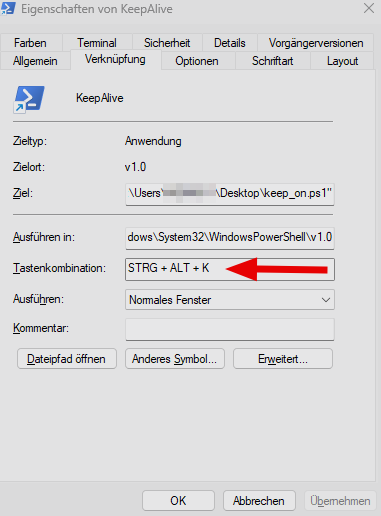
As soon as you press this key combination, a new task appears in the Windows taskbar, making it easy to terminate the process whenever you want normal behavior back.
Conclusion
This PowerShell mouse wiggler is the leanest functional version yet. It uses native Windows APIs, minimal logic, and a sensible interval to keep sessions alive without being intrusive. Ideal for remote desktops or systems with strict timeout policies.