WiFi Probe Requests for Smart Security
Leverage WiFi probe requests to identify visitors and services, integrating data with ioBroker for enhanced security notifications.


It is now common for perimeters to be monitored with cameras, providing visual confirmation of activities. However, an additional layer of intelligence can be gained by observing the invisible signals that surround a property – specifically, WiFi probe requests. These digital breadcrumbs, emitted by almost every smartphone and device, can reveal not only the presence of an individual but also clues about their identity or purpose, integrating seamlessly with existing home automation and security systems to create a more comprehensive surveillance and notification infrastructure. It adds to my very first steps towards AI in 2023.
 Michael Meister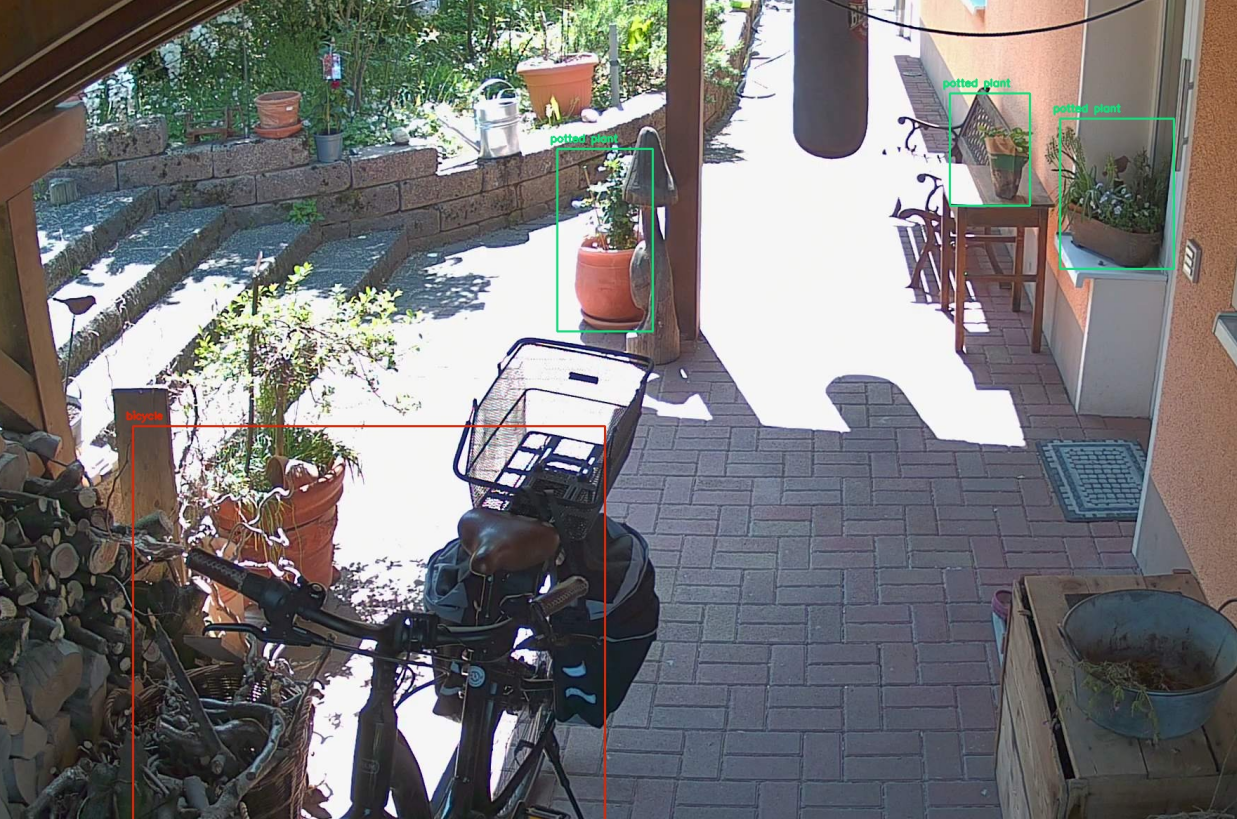
Understanding WiFi Probe Requests
In the bustling digital ether, every Wi-Fi-enabled device constantly seeks familiar networks. This search manifests as WiFi probe requests, small data packets broadcast periodically into the air. These requests often contain the Service Set Identifier (SSID), essentially the name of the Wi-Fi network the device is trying to connect to (e.g., “MyHomeWifi” or “Starbucks_Free_WiFi”). If no specific SSID is requested, the device might send a “broadcast probe request” to discover any available networks. Accompanying these requests is the device’s MAC address (Media Access Control address), a unique identifier for the network interface.
While seemingly innocuous, these probe requests create a digital trail. By capturing and analyzing them, it becomes possible to infer which known networks a device has previously connected to, or even the type of service it might be associated with. For instance, a delivery driver’s scanner might probe for an “Amazon_Warehouse” or “DHL_Scanner” network. Furthermore, correlating observed MAC addresses with publicly available databases like Wigle.net can reveal geographic locations where that device has been seen before, offering insights into a visitor’s potential origin or frequent haunts. It is important to acknowledge that modern operating systems often employ MAC randomization to enhance user privacy, changing the MAC address periodically or for different networks. However, many devices still broadcast static MACs when looking for their home network.
Essential Tools and Setup
To tap into these invisible signals, a specialized setup is required. The core components include a Linux-based system, a compatible Wi-Fi adapter, and specific software tools.
Required Hardware: A Wi-Fi adapter capable of operating in monitor mode is essential. Many USB Wi-Fi adapters based on chipsets like Realtek, Atheros, or Mediatek support this functionality. Popular choices for this purpose include the Alfa AWUS036 series.
Software Installation (Debian/Ubuntu Example): The necessary tools can typically be installed via the system’s package manager:
# M. Meister: Install essential WiFi monitoring and MQTT tools.
sudo apt update
sudo apt install -y iw tcpdump mosquitto-clients
Enabling Monitor Mode: Before sniffing, the Wi-Fi adapter must be switched into monitor mode. This allows it to capture all Wi-Fi traffic, not just packets intended for it. The iw utility is used for this purpose.
First, ensure that wireless functionality is not blocked:
# M. Meister: Unblock all RF devices to ensure WiFi is active.
sudo rfkill unblock all
Identify the physical interface name of the Wi-Fi adapter (e.g., wlan0). Then, create a new virtual monitor interface. The provided script uses wlan0mon as the monitor interface name.
# M. Meister: Check if monitor interface exists, if not, create it.
# The physical interface (PHY_IF) is usually wlan0 or wlpXsY.
PHY_IF="wlan0"
INTERFACE="wlan0mon"

if ! ip link show "$INTERFACE" >/dev/null 2>&1; then
    echo "Creating monitor interface $INTERFACE..."
    sudo iw "$PHY_IF" interface add "$INTERFACE" type monitor
    if [ $? -ne 0 ]; then
        echo "Error: Could not create monitor interface $INTERFACE. Check PHY_IF and adapter capabilities."
        exit 1
    fi
fi

# M. Meister: Bring up the monitor interface.
sudo ip link set "$INTERFACE" up
if [ $? -ne 0 ]; then
    echo "Error: Could not activate $INTERFACE."
    exit 1
fi

echo "Monitor interface $INTERFACE is now active."
At this point, the system is ready to listen for Wi-Fi traffic.
MQTT for Data Flow
To efficiently transport the captured Wi-Fi data to a home automation system, a lightweight messaging protocol is needed. MQTT (Message Queuing Telemetry Transport) is ideally suited for this. It operates on a publish/subscribe model, where a central MQTT broker receives messages (published) and distributes them to interested parties (subscribers).
In this setup, an ioBroker instance acts as both the home automation hub and the MQTT broker host. Each mosquitto_pub instance (used to send data to the broker) must use a unique client ID (-i) to maintain distinct connections, preventing conflicts and ensuring reliable message delivery.
Capturing and Streamlining WiFi Data
The core of the WiFi monitoring solution is a bash script that orchestrates the capture, parsing, and transmission of probe request data.
Script Overview
The script performs the following key functions:
- Configuration: Defines MQTT credentials, interface names, and topics.
- Monitor Interface Management: Ensures the Wi-Fi adapter is in monitor mode and activated.
- Persistent MQTT Connections: Establishes three dedicated, long-lived MQTT connections using Bash file descriptors for efficient data streaming.
- Packet Capture: Leverages
tcpdumpto specifically filter and capture probe request frames. - Data Extraction: Uses regular expressions to pull out the MAC address, ESSID, and Received Signal Strength Indicator (RSSI) from each captured packet.
- Payload Generation: Formats the extracted data into a JSON object.
- Data Transmission: Sends the JSON payload, MAC address, and ESSID to distinct MQTT topics.
Persistent Pipes
A particularly elegant aspect of this script is the use of Bash file descriptors (FDs) for persistent MQTT connections. Instead of spawning a new mosquitto_pub process for every single probe request (which would be resource-intensive and slow), three mosquitto_pub processes are started once in the background. Each is assigned a unique file descriptor (3, 4, and 5). The main loop then simply writes data to these specific file descriptors, which act as pipes directly feeding the input of the corresponding mosquitto_pub processes. This ensures minimal overhead and high throughput.
#!/bin/bash

# M. Meister: Configuration for WiFi monitoring and MQTT publishing.

# MQTT Credentials and Host
IOUSER="MYMQTT"
IOPASS="MYMQTTPASS"
# The iobroker host also runs the MQTT broker.
MQTT_HOST="iobroker"
MQTT_PORT="1883"

# Network Interfaces
# PHYSICAL_INTERFACE: Your actual WiFi adapter name (e.g., wlan0).
PHY_IF="wlan0"
# MONITOR_INTERFACE: The virtual interface created for sniffing.
INTERFACE="wlan0mon"

# MQTT Topics for different data types
TOPIC_JSON="WIFI/PROBE" # All data as JSON
TOPIC_MAC="WIFI/MAC"   # Only MAC addresses
TOPIC_SSID="WIFI/ESSID" # Only ESSIDs

# --- REGEX DEFINITIONS ---
# Regular expressions to extract MAC, ESSID, and RSSI from tcpdump output.
RE_MAC="SA:([a-f0-9:]+)"            # Source Address (MAC)
RE_SSID="Probe Request \(([^)]*)\)" # ESSID in parentheses
RE_RSSI="([0-9-]+)dBm"              # RSSI in dBm
# ---------------------------

# Ensure all radio devices are unblocked.
sudo rfkill unblock all

# Check if the monitor interface exists; if not, create it.
if ! ip link show "$INTERFACE" >/dev/null 2>&1; then
    echo "Creating monitor interface $INTERFACE from $PHY_IF..."
    # 'iw' is used to create and manage wireless devices.
    sudo iw "$PHY_IF" interface add "$INTERFACE" type monitor
    if [ $? -ne 0 ]; then
        echo "Error: Failed to create monitor interface $INTERFACE. Please check PHY_IF ($PHY_IF) and adapter capabilities."
        exit 1
    fi
fi

# Bring the monitor interface up.
sudo ip link set "$INTERFACE" up
if [ $? -ne 0 ]; then
    echo "Error: Failed to activate $INTERFACE. Check if it's in use or if you have sufficient permissions."
    exit 1
fi

echo "Starting WiFi sniffing on $INTERFACE..."
echo "Opening 3 persistent MQTT connections to $MQTT_HOST:$MQTT_PORT..."

# --- START OF THE MAGIC: Opening Permanent Pipes ---
# Three mosquitto_pub processes are started in the background.
# Each listens on its own dedicated file descriptor (3, 4, 5).
# IMPORTANT: Each connection needs a unique client ID (-i) for stability.

# FD 3 -> Sends JSON payload to WIFI/PROBE topic
exec 3> >(mosquitto_pub -h "$MQTT_HOST" -p "$MQTT_PORT" -u "$IOUSER" -P "$IOPASS" -i iobroker_wifi_json -l -t "$TOPIC_JSON")
if [ $? -ne 0 ]; then echo "Error starting mosquitto_pub for JSON."; exit 1; fi

# FD 4 -> Sends MAC address to WIFI/MAC topic
exec 4> >(mosquitto_pub -h "$MQTT_HOST" -p "$MQTT_PORT" -u "$IOUSER" -P "$IOPASS" -i iobroker_wifi_mac -l -t "$TOPIC_MAC")
if [ $? -ne 0 ]; then echo "Error starting mosquitto_pub for MAC."; exit 1; fi

# FD 5 -> Sends ESSID to WIFI/ESSID topic
exec 5> >(mosquitto_pub -h "$MQTT_HOST" -p "$MQTT_PORT" -u "$IOUSER" -P "$IOPASS" -i iobroker_wifi_ssid -l -t "$TOPIC_SSID")
if [ $? -ne 0 ]; then echo "Error starting mosquitto_pub for ESSID."; exit 1; fi
# ----------------------------------------------------

# Main loop: Capture packets, parse, and send via MQTT
# tcpdump:
# -l: line buffered output
# -n: don't convert addresses to names (faster, cleaner output)
# -e: print the link-level header (contains MACs, RSSI info)
# -s 0: snaplen 0 (capture full packet)
# -i "$INTERFACE": specify the monitor interface
# subtype probe-req: filter for Wi-Fi probe request frames
# 2>/dev/null: suppress tcpdump errors
# grep:
# --line-buffered: process output line by line (important for pipes)
# -E: extended regex
# -v: invert match (select non-matching lines)
# -i: case-insensitive match
# "Sonos": filter out Sonos devices, which can generate a lot of probe requests.
sudo tcpdump -l -n -e -s 0 -i "$INTERFACE" subtype probe-req 2>/dev/null | \
grep --line-buffered -Evi "Sonos" | \
while read -r packet
do
    MAC="unknown"
    ESSID="hidden"
    RSSI="0"

    # --- Extract MAC address ---
    if [[ "$packet" =~ $RE_MAC ]]; then
        MAC="${BASH_REMATCH[1]}"
    else
        # If MAC cannot be extracted, skip this packet as it's crucial.
        continue
    fi

    # --- Extract ESSID ---
    if [[ "$packet" =~ $RE_SSID ]]; then
        ESSID="${BASH_REMATCH[1]}"
    fi
    # If ESSID is empty, set to "none" for consistency.
    [ -z "$ESSID" ] && ESSID="none"

    # --- Extract RSSI ---
    if [[ "$packet" =~ $RE_RSSI ]]; then
        RSSI="${BASH_REMATCH[1]}"
    fi

    # 1. Construct JSON Payload
    # printf for robust JSON formatting.
    PAYLOAD=$(printf '{"mac": "%s", "ssid": "%s", "rssi": %s}' "$MAC" "$ESSID" "$RSSI")

    # 2. Write data to the persistent pipes (file descriptors)
    # >&3 writes to the pipe for JSON (iobroker_wifi_json)
    echo "$PAYLOAD" >&3

    # >&4 writes to the pipe for MAC (iobroker_wifi_mac)
    echo "$MAC" >&4

    # >&5 writes to the pipe for ESSID (iobroker_wifi_ssid)
    echo "$ESSID" >&5

done

# Cleanup: Close the file descriptors.
# This happens automatically when the script exits, but explicit closure is good practice.
exec 3>&-
exec 4>&-
exec 5>&-
This script, once running, continuously streams relevant Wi-Fi probe request data to the MQTT broker, ready for consumption by ioBroker.
Integrating with ioBroker for Actionable Intelligence
ioBroker serves as the central hub for home automation, allowing the correlation of diverse data streams and the execution of complex rules. The WiFi probe data, once arriving via MQTT, can be combined with existing security systems like Frigate (for camera-based object detection) to provide a more holistic view of activities around the property.
Receiving WiFi Data in ioBroker
To consume the data published by the bash script, ioBroker needs to be configured to subscribe to the relevant MQTT topics (WIFI/PROBE, WIFI/MAC, WIFI/ESSID). This is typically done through an MQTT adapter within ioBroker, which creates data points for the incoming messages. Scripts then react to changes in these data points.
A simple ioBroker JavaScript example to subscribe to the topics and log the incoming data might look like this:
// M. Meister: ioBroker script fragment to demonstrate MQTT data reception.

// Subscribe to the JSON topic and log the payload
on({ id: 'mqtt.0.WIFI.PROBE', change: 'any' }, (obj) => {
    log('Received WiFi Probe JSON: ' + obj.state.val, 'debug');
    // Parse the JSON string into an object
    let probeData = JSON.parse(obj.state.val);
    log('Parsed MAC: ' + probeData.mac + ', ESSID: ' + probeData.ssid + ', RSSI: ' + probeData.rssi, 'info');
    // You could now store this data in ioBroker states or use it directly.
});

// Subscribe to the MAC topic
on({ id: 'mqtt.0.WIFI.MAC', change: 'any' }, (obj) => {
    log('Received WiFi MAC: ' + obj.state.val, 'debug');
    // Store in a state or list of current MACs
});

// Subscribe to the ESSID topic
on({ id: 'mqtt.0.WIFI.ESSID', change: 'any' }, (obj) => {
    log('Received WiFi ESSID: ' + obj.state.val, 'debug');
    // Store in a state or list of current ESSIDs
});

// Note: The specific object IDs (e.g., 'mqtt.0.WIFI.PROBE') depend on your MQTT adapter's configuration.
Correlating with Camera Events and Triggering Notifications
The provided ioBroker script illustrates how camera events (specifically, person detection from Frigate) are already used to trigger actions and notifications. The WiFi probe data can now enrich this process. For example, when a person is detected by cam2, the system can not only capture an image but also check the recently observed MAC addresses or ESSIDs.
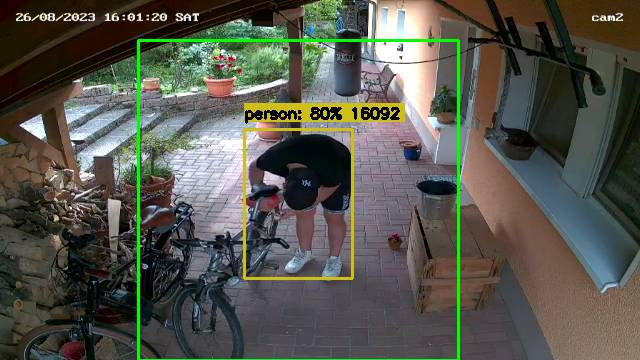
If a specific MAC address (e.g., one known to belong to a regular visitor) is seen, notifications might be suppressed or altered. Conversely, if an unknown MAC address or a recognized “delivery service” ESSID (e.g., “Amazon”, “DHL”) is detected around the time a person is seen, a more urgent or tailored notification can be sent. The extracted ESSIDs can even be cross-referenced with services like Wigle.net to provide more context about the device’s usual haunts. I also know that an employee’s phone consistently looks for an ESSID like “peters_greenhouse,” so I created an ioBroker script that logs whenever he’s on campus. That makes later billing very simple because attendance times are easy to determine.
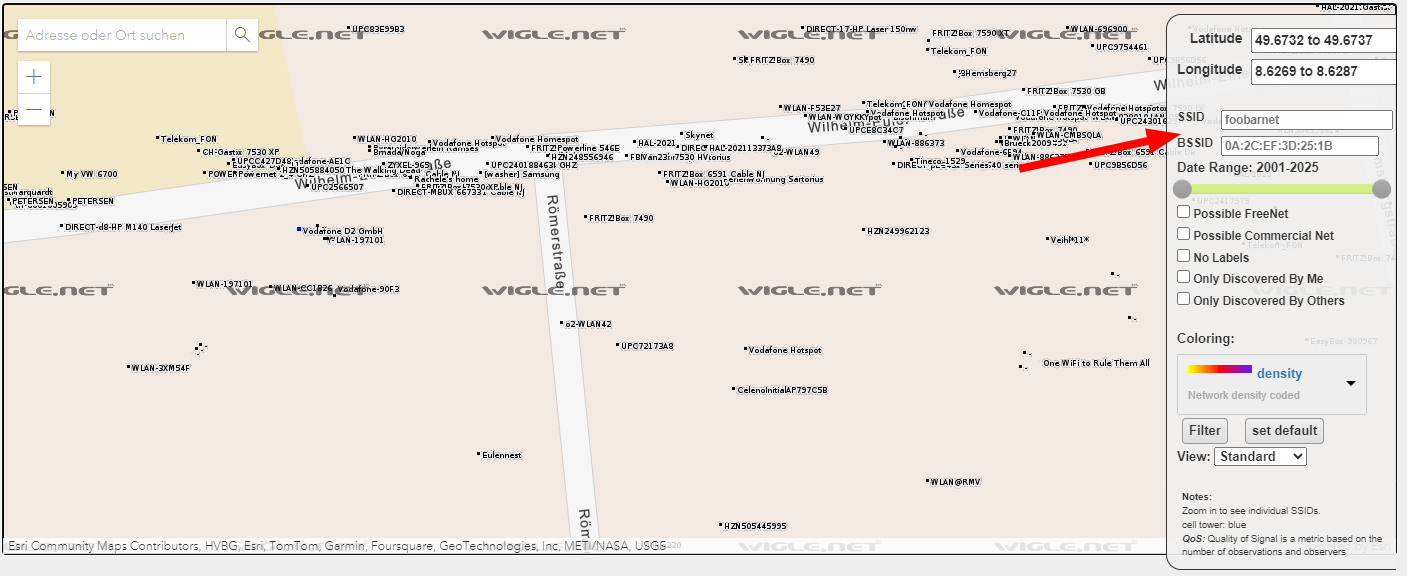
Since I detect probe requests long before they reach any camera’s field of view, I can prepare for incoming deliveries in advance.
Below is the provided ioBroker script, adapted to include placeholders for sensitive data and with comments to explain its operation. While it does not directly integrate the incoming WIFI/PROBE data, it serves as the foundation upon which such correlation can be built by storing the latest WiFi observations in ioBroker states and checking them within the on triggers.
// M. Meister: ioBroker script for person detection and notifications.

var people, i_turned_it_on, Channel, Titel, Nachricht, Tag, Prio;

// Triggered when the number of persons detected by Frigate cam2 changes
on({ id: [].concat(['frigate.0.cam2.person']), change: 'ne' }, async (obj) => {
  let value = obj.state.val;
  // let oldValue = obj.oldState.val; // oldValue is not used in this block
  if ((obj.state ? obj.state.val : '') > 0) {
    // If the number of people changes to greater than 0
    people = (obj.state ? obj.state.val : '');
    console.warn(('Number of people in front of the house: ' + String((obj.state ? obj.state.val : ''))));

    // Optional: If it's dark and no light is on, turn it on temporarily.
    // 'javascript.0.variables.isDayTime' and 'sonoff.0.relaisblock1.POWER8' are ioBroker states.
    if ((!getState('javascript.0.variables.isDayTime').val) && (!getState('sonoff.0.relaisblock1.POWER8').val)) {
      setState('sonoff.0.relaisblock1.POWER8' /* relaisblock1  POWER8 */, true);
      i_turned_it_on = true;
    }

    // Capture an image from cam2
    // IMPORTANT: Replace 'cam2' with the actual IP/hostname and credentials.
    exec('wget -qO /tmp/cam2.jpg "http://cam2/cgi-bin/api.cgi?cmd=Snap&channel=0&rs=YOUR_CAMERA_RS_PARAM&user=YOUR_CAMERA_USER&password=YOUR_CAMERA_PASSWORD"');
    await wait(5000); // Wait for the image to be saved.

    // Check if a specific phone (Michael's) is online to adjust notification priority
    // 'alias.0.Phones.Michael.is_online' is an ioBroker state.
    if (getState('alias.0.Phones.Michael.is_online').val) {
      // If Michael's phone is inside, send a lower priority notification (no vibration)
      Channel = 'iobroker';
      Titel = 'Person in front of the house';
      Nachricht = '/tmp/cam2.jpg';
      // Tags correspond to emojis on ntfy.sh: https://docs.ntfy.sh/emojis/
      Tag = 'house';
      Prio = '2'; // Lower priority
      // Send notification via ntfy.sh (replace YOUR_NTFY_USER/PASS and push.mydomain.de if self-hosting)
      exec((['curl -u "','YOUR_NTFY_USER','":"','YOUR_NTFY_PASSWORD','" -H "Title: ',Titel,'" -H "Priority: ',Prio,'" -H "Tags: ',Tag,'" -T "',Nachricht,'" https://push.mydomain.de/',Channel].join('')));
      console.warn('exec: ' + (['curl -u "','YOUR_NTFY_USER','":"','YOUR_NTFY_PASSWORD','" -H "Title: ',Titel,'" -H "Priority: ',Prio,'" -H "Tags: ',Tag,'" -T "',Nachricht,'" https://push.mydomain.de/',Channel].join('')));
    } else {
      // If Michael's phone is not inside, send a higher priority notification (with vibration)
      Channel = 'iobroker';
      Titel = 'Person in front of the house';
      Nachricht = '/tmp/cam2.jpg';
      Tag = 'house';
      Prio = '3'; // Higher priority
      exec((['curl -u "','YOUR_NTFY_USER','":"','YOUR_NTFY_PASSWORD','" -H "Title: ',Titel,'" -H "Priority: ',Prio,'" -H "Tags: ',Tag,'" -T "',Nachricht,'" https://push.mydomain.de/',Channel].join('')));
      console.warn('exec: ' + (['curl -u "','YOUR_NTFY_USER','":"','YOUR_NTFY_PASSWORD','" -H "Title: ',Titel,'" -H "Priority: ',Prio,'" -H "Tags: ',Tag,'" -T "',Nachricht,'" https://push.mydomain.de/',Channel].join('')));
    }
  } else {
    // If the number of people becomes 0
    if (i_turned_it_on) {
      // If the light was turned on by this script, turn it off after 45 seconds.
      setStateDelayed('sonoff.0.relaisblock1.POWER8' /* relaisblock1  POWER8 */, false, 45000, true);
      i_turned_it_on = false;
    }
  }
});
This comprehensive approach transforms raw Wi-Fi signals into actionable intelligence, significantly enhancing the capabilities of a modern home security and automation system.
Practical Applications and Enhanced Security
The integration of WiFi probe monitoring with camera-based security opens up a myriad of practical applications:
- Proactive Detection of Delivery Services: By recognizing common ESSIDs used by barcode scanners or mobile terminals of delivery services (e.g., “Amazon_Flex”, “DHL_Handy”), automated notifications can alert residents to incoming packages even before the doorbell rings. This preemptive knowledge can prevent missed deliveries or enable timely package reception.
- Identification of Unknown Visitors: When an unfamiliar person is detected by cameras, the simultaneous capture of their device’s MAC address and probed ESSIDs can offer valuable clues. Searching these ESSIDs on platforms like Wigle.net might reveal locations where the device has been observed before, potentially indicating the visitor’s origin or frequent presence in certain areas.
- Enhanced Security Alerts: Distinguishing between known, harmless presence (e.g., a family member whose phone has a recognized MAC address) and truly unknown individuals allows for intelligent prioritization of security alerts. A high-priority notification with an image and details about an unknown device’s probed networks provides a richer context for security decisions.
- Tailored Automation: Beyond mere notifications, the system can trigger other smart home actions. For instance, if a delivery service is detected, a smart light might illuminate the porch, or a gate could be unlocked remotely, enhancing convenience while maintaining security awareness.
While powerful, it is crucial to consider the ethical implications of collecting and analyzing such data. While probe requests are publicly broadcast, the correlation with individual movements and identification should be handled with respect for privacy, adhering to local regulations and personal ethical standards. This system is designed for perimeter security and property awareness, not for intrusive surveillance of individuals beyond the property line.
Conclusion
Integrating WiFi probe request monitoring with camera-based person detection creates a robust and intelligent security solution. By harnessing the invisible data trails left by modern devices, a home automation system can gain enhanced context about visitors, enabling proactive responses, personalized notifications, and a heightened sense of security. This layered approach transforms passive observation into active intelligence, ensuring a more informed and responsive perimeter defense.