Protecting Nextcloud-Whiteboard against Attacks using NPM
Stop public access to your whiteboard while keeping it fully functional within Nextcloud using advanced Nginx logic.


It is widely acknowledged that digital whiteboards are a game-changer for online education and remote collaboration. As discussed in a previous article about using Whiteboards for online training in Nextcloud, the integration of Excalidraw into Nextcloud provides a seamless experience for workshops. However, hosting a publicly accessible service inevitably attracts unwanted attention from botnets and vulnerability scanners, necessitating a robust security strategy that goes beyond simple password protection.
Indicators
My smartwatch was vibrating like crazy because my AI warned me about an impending attack on my whiteboard, which I had integrated into my Nextcloud.
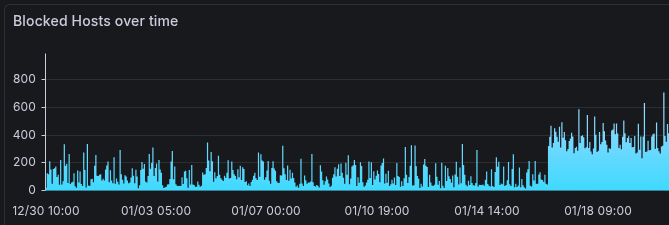
And these were the corresponding reports with the details (it´s german,I know 😇):
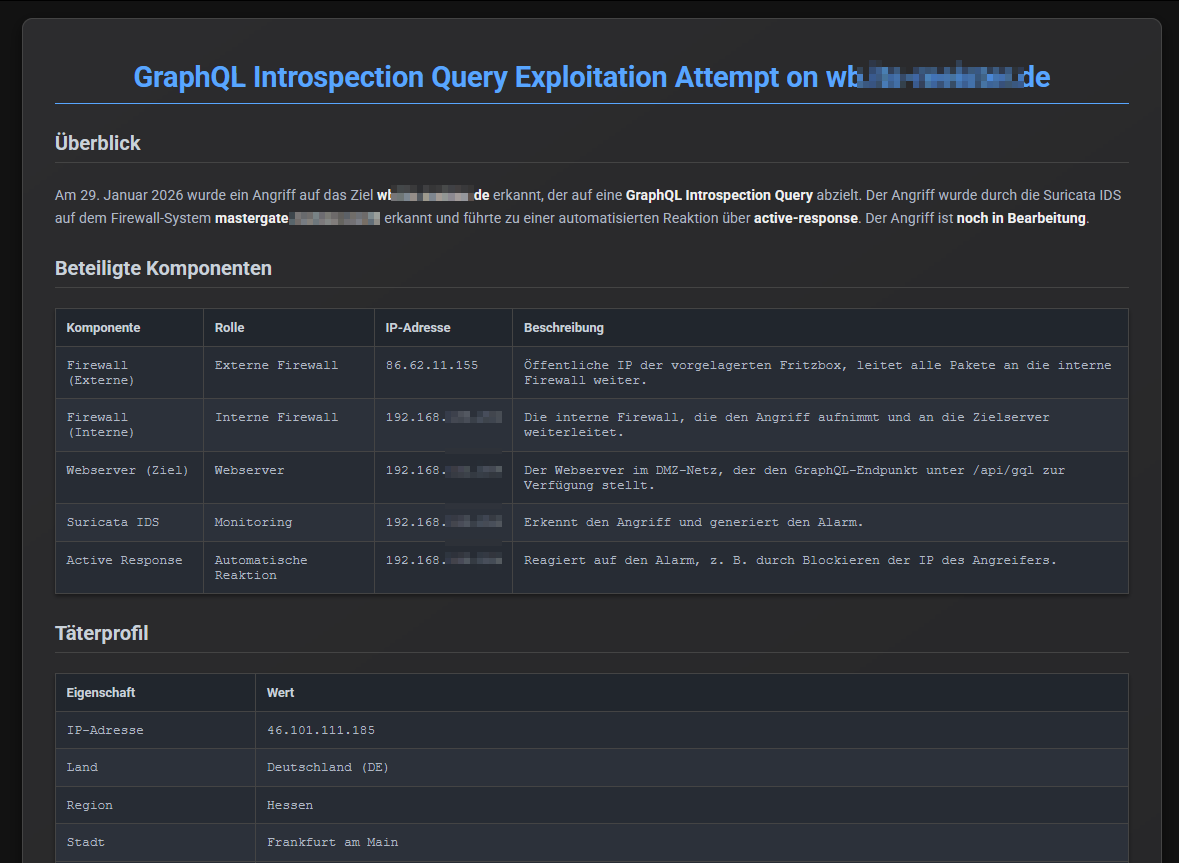
Although the Nextcloud data wasn’t affected, the attacker was able to communicate with the whiteboard service like any other internet user. That exposure had made me uneasy from the start. My SIEM blocked the attacks, but the whiteboard was still publicly accessible. That had to change immediately.
The Problem with Basic Authentication and Iframes
When securing a web service like Excalidraw, the first instinct is often to implement Basic Authentication (the classic browser pop-up asking for a username and password). While effective for direct access, this method fails spectacularly when the service is embedded within another application.
Since the Nextcloud Whiteboard integration loads the Excalidraw instance via an iframe, modern browsers block Basic Authentication attempts (https://user:pass@domain.com) for security reasons. This results in a blocked page or console errors, rendering the integration useless. Consequently, a smarter "door bouncer" approach is required: allowing traffic only when it originates from the trusted Nextcloud instance.
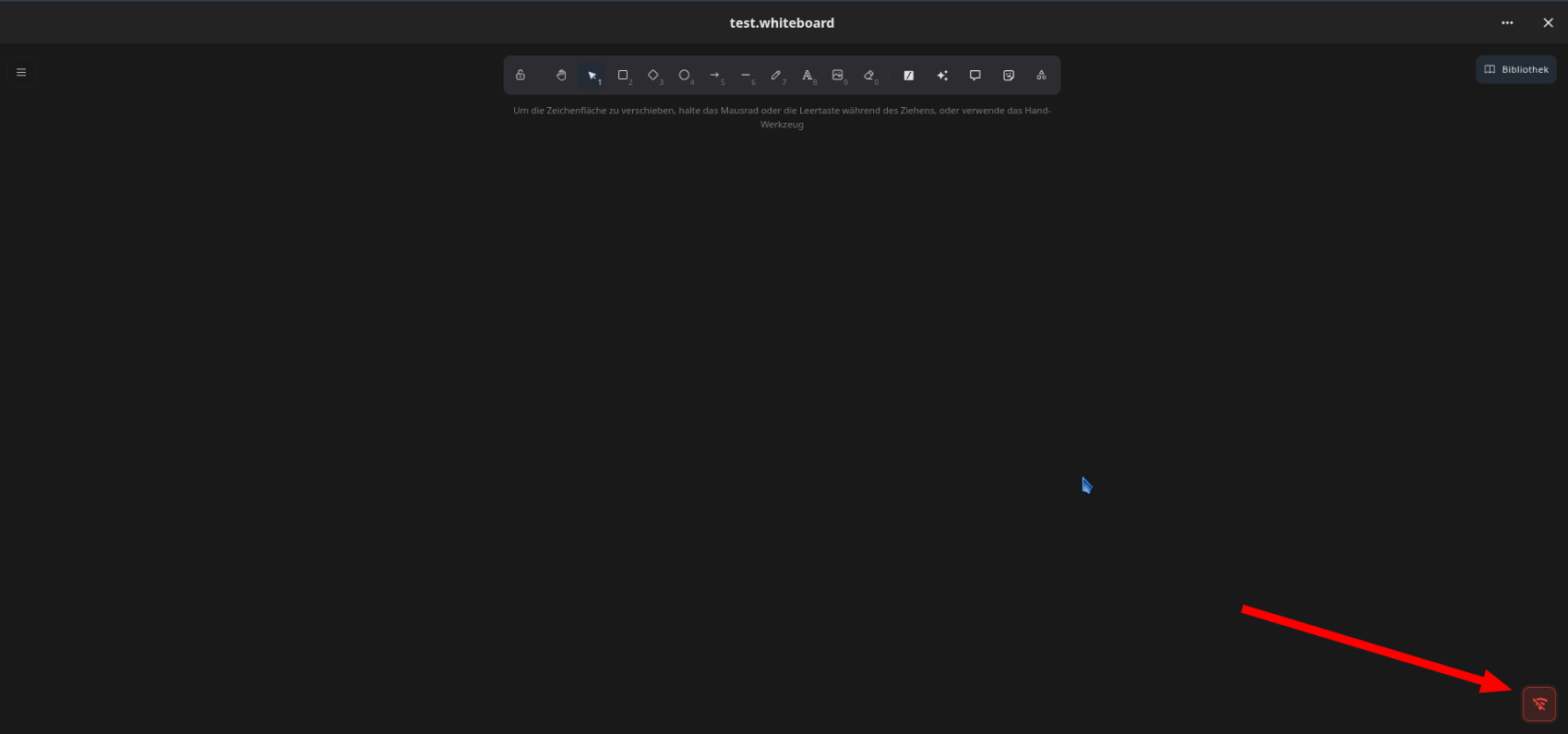
The Referer Method and the WebSocket Trap
The logical alternative is to inspect the HTTP Referer header. The web server is instructed to allow requests only if they claim to come from https://cloud.example.com. In theory, this sounds perfect. In practice, however, it often leads to a "broken" state where the user interface loads, but the application remains offline.
This phenomenon occurs because Excalidraw—like many modern real-time applications—relies heavily on WebSockets (specifically via socket.io) for live collaboration. While the initial HTML document request contains the correct Referer from Nextcloud, the subsequent WebSocket handshake or upgrade request often behaves differently. Browsers may strip the referrer for privacy reasons during protocol upgrades, or the socket.io polling mechanism might not send headers in a way a strict Nginx rule expects.
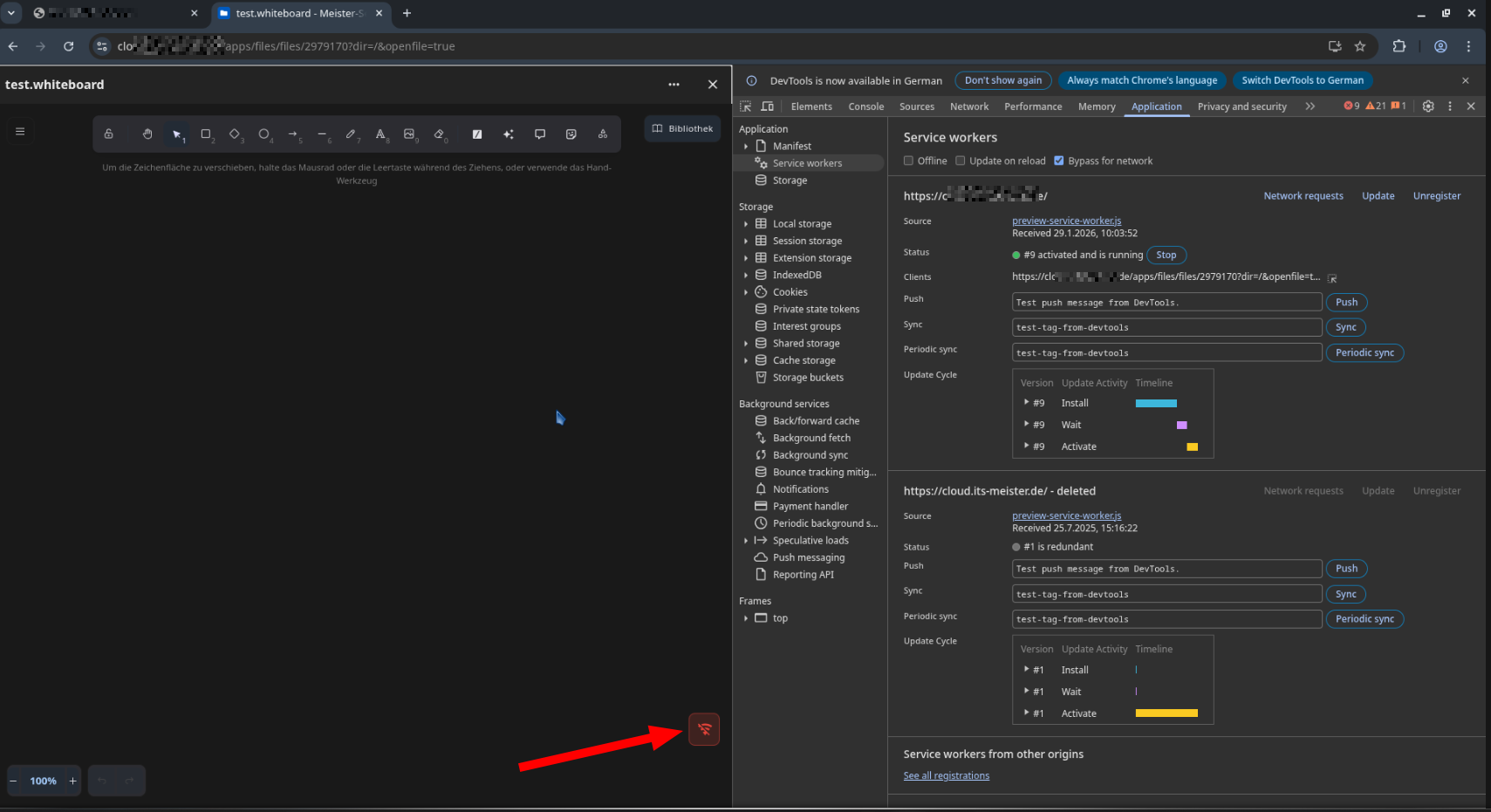
The result? The static assets (CSS, JS) load fine, but the live connection is rejected with a 403 Forbidden error, leaving the user with a persistent "Offline" or "Connecting..." warning.
A Robust Nginx Configuration
To solve this, the web server configuration must be sophisticated enough to handle Cross-Origin Resource Sharing (CORS) preflight checks, validate Origin headers (which are often more reliable than Referers for WebSockets), and explicitly permit the socket.io transport path.
Below is a complete configuration tailored for Nginx Proxy Manager (NPM). It uses a variable-based approach ($allow_access) to avoid the pitfalls of nested if statements in Nginx. This configuration effectively blocks direct access to the whiteboard URL while allowing the Nextcloud integration to function fully.
# -----------------------------------------------------------------
# M. Meister - Advanced Access Control for Nextcloud/Excalidraw
# -----------------------------------------------------------------

# --- Performance Settings ---
client_body_buffer_size 10M;
proxy_buffers 8 1024k;
proxy_buffer_size 1024k;
proxy_busy_buffers_size 2048k;

# --- Security Logic ---

# Default: Deny access (0)
set $allow_access 0;

# 1. RULE: Is the Referer (Sender) known?
# We check via Regex if the Cloud or Whiteboard domain is present.
# Replace 'cloud.example.com' and 'wb.example.com' with actual domains.
if ($http_referer ~* "https://(cloud|wb)\.example\.com") {
    set $allow_access 1;
}

# 2. RULE: Is the Origin Header known?
# Crucial for WebSockets and POST requests where Referer might be missing.
if ($http_origin ~* "https://(cloud|wb)\.example\.com") {
    set $allow_access 1;
}

# 3. RULE: Is it traffic for collaboration (socket.io)?
# Excalidraw appends various parameters (e.g., /socket.io/?EIO=4...),
# so we simply check if "socket.io" is present in the URI.
if ($uri ~* "socket.io") {
    set $allow_access 1;
}

# 4. RULE: Allow "OPTIONS" (CORS Preflight)
# Browsers often ask "Am I allowed?" without sending a Referer.
if ($request_method = 'OPTIONS') {
    set $allow_access 1;
}

# 5. RULE: Explicitly allow WebSocket Upgrades
if ($http_upgrade = "websocket") {
    set $allow_access 1;
}

# FINAL DECISION: If none of the rules above set the flag to 1 -> Block.
if ($allow_access = 0) {
    return 403;
}
Implementation in Nginx Proxy Manager
For this configuration to work correctly within Nginx Proxy Manager, two steps are required:
- Advanced Configuration: The code block above must be pasted into the "Advanced" tab of the Proxy Host configuration for the whiteboard subdomain. It is vital to replace
example.comwith the actual domain names used in the environment. - WebSocket Support: In the "Details" tab, the "Websockets Support" switch must be toggled ON. This ensures NPM adds the necessary
UpgradeandConnectionheaders to the upstream proxy request, allowing the handshake to complete successfully.
Success
This small entry in the advanced settings tab of my nginx-proxy-manager made sure, that only legit users can access the whiteboard. The offline-symbol was gone:
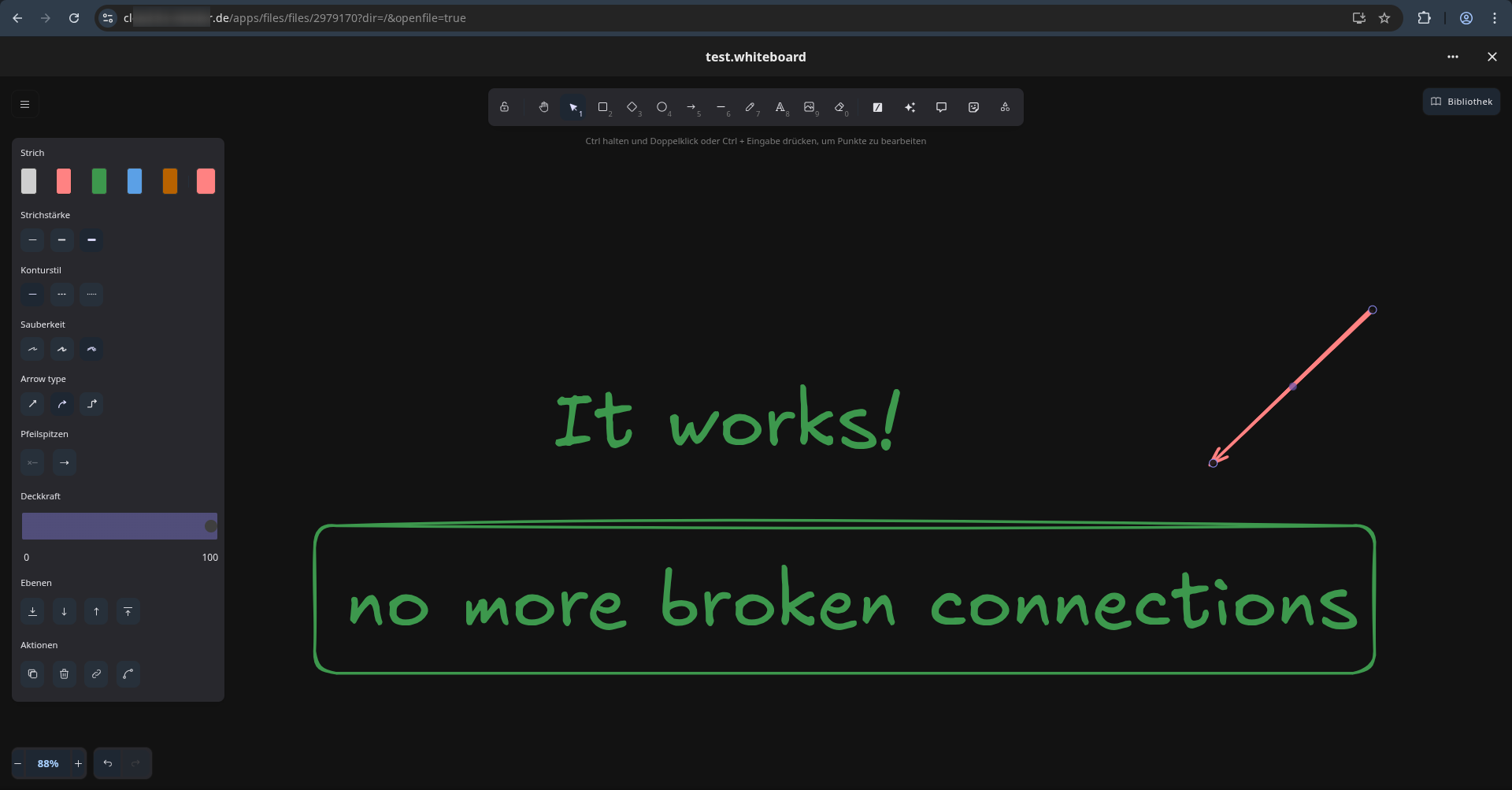
And when I tried to access the whiteboard directly I was thrown out immediately:
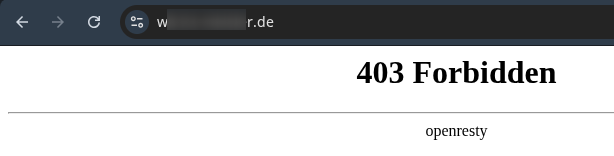
Conclusion
Securing integrated services often involves a delicate balance between accessibility and restriction. By moving beyond simple IP blocking or Basic Auth and implementing a logic that considers Referers, Origins, and WebSocket protocols, it is possible to create a setup that is invisible to the user but opaque to the rest of the internet. The whiteboard remains a secure, exclusive tool for the intended Nextcloud audience, keeping the "noise" of the public internet at bay.