Hidden ADB Commands for Wireless Management
No expensive gadgets needed-just a USB cable, Linux, and the power of ADB shell.


I recently explored the hidden depths of the Android Debug Bridge (ADB) and discovered that it is much more than just a tool for sideloading apps or pulling logs. It turns out that Wi-Fi functionality on an Android device can be completely controlled at the framework level from a Linux terminal. This capability allows for triggering scans, connecting to specific BSSIDs, or even forcing a connection to a network the device has never seen before-all without ever touching the smartphone's screen.
Setting Up the ADB Environment
Before any framework-level magic can happen, the environment must be prepared. On a Linux system like Kali or Ubuntu, the installation is straightforward. If the which adb command returns no path, the package is likely missing. It can be installed by updating the repositories and fetching the tools in a single line.
# Update and install ADB - M. Meister
sudo apt update && sudo apt install -y adb
Once installed, the version can be verified using adb --version. The Android device itself requires Developer Options and USB Debugging to be enabled. After connecting the device via USB, the connection is confirmed by running adb devices. If a prompt appears on the smartphone, it must be accepted to authorize the Linux machine.
Discovering the Hidden Wi-Fi Service
Most users interact with ADB through high-level commands, but the true power lies in the cmd interface. Android runs various services in the background, which can be listed using the dumpsys -l command. Among the sea of services like bluetooth_manager or package, there is a specific service simply named wifi.
Accessing this service requires the cmd wifi command. While shelling directly into the device via adb shell is an option, commands are often more efficiently executed directly from the Linux terminal. To see the full range of available capabilities, the help menu is accessed as follows:
adb shell cmd wifi help
This reveals a massive list of subcommands.
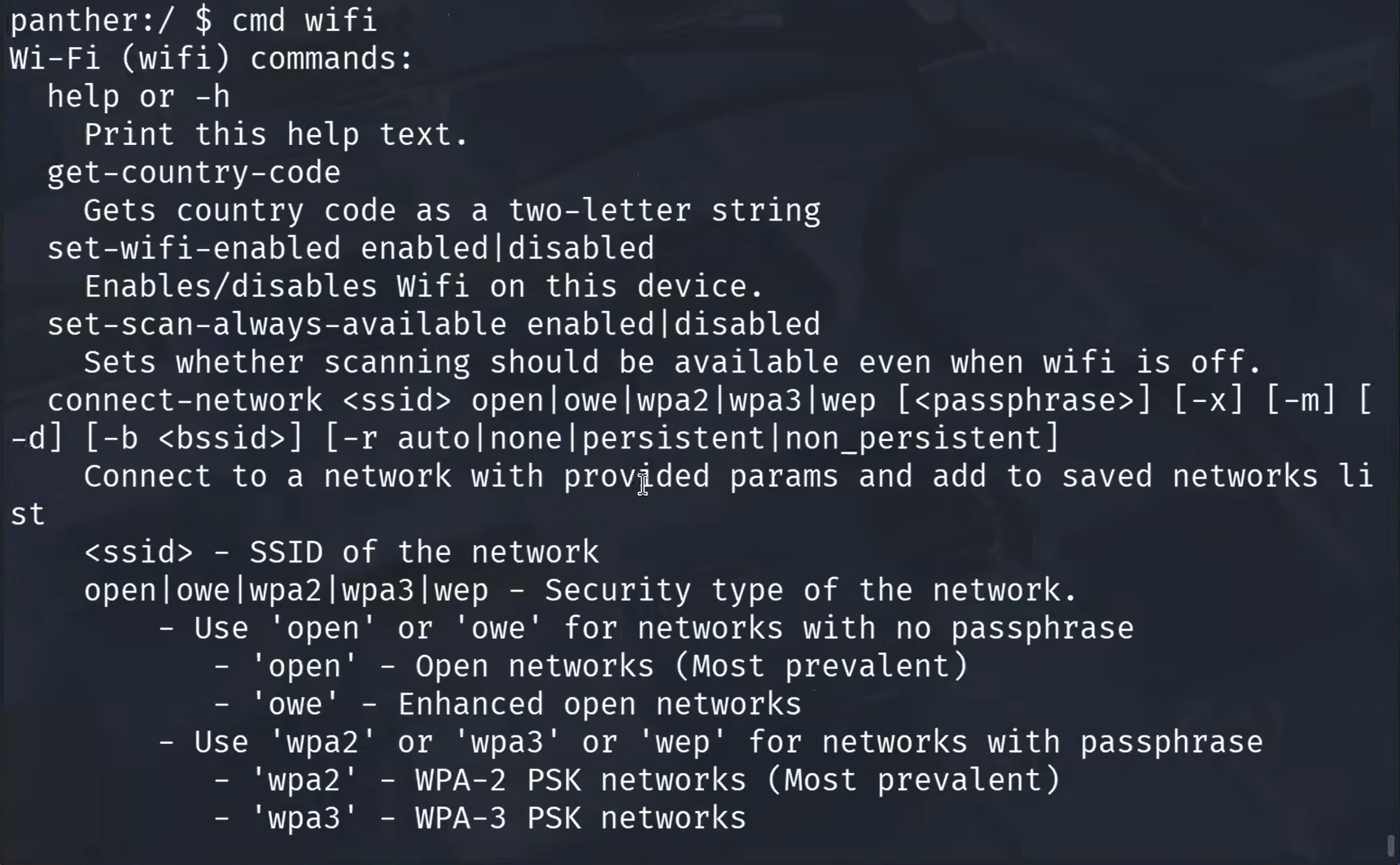
It is worth noting that some of these advanced features may require root privileges, though many of the most useful Wi-Fi management tools work perfectly fine on standard production builds.
Checking Status and Toggling Connectivity
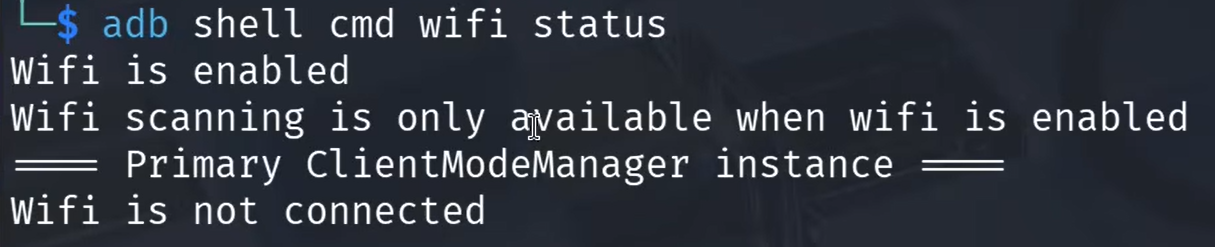
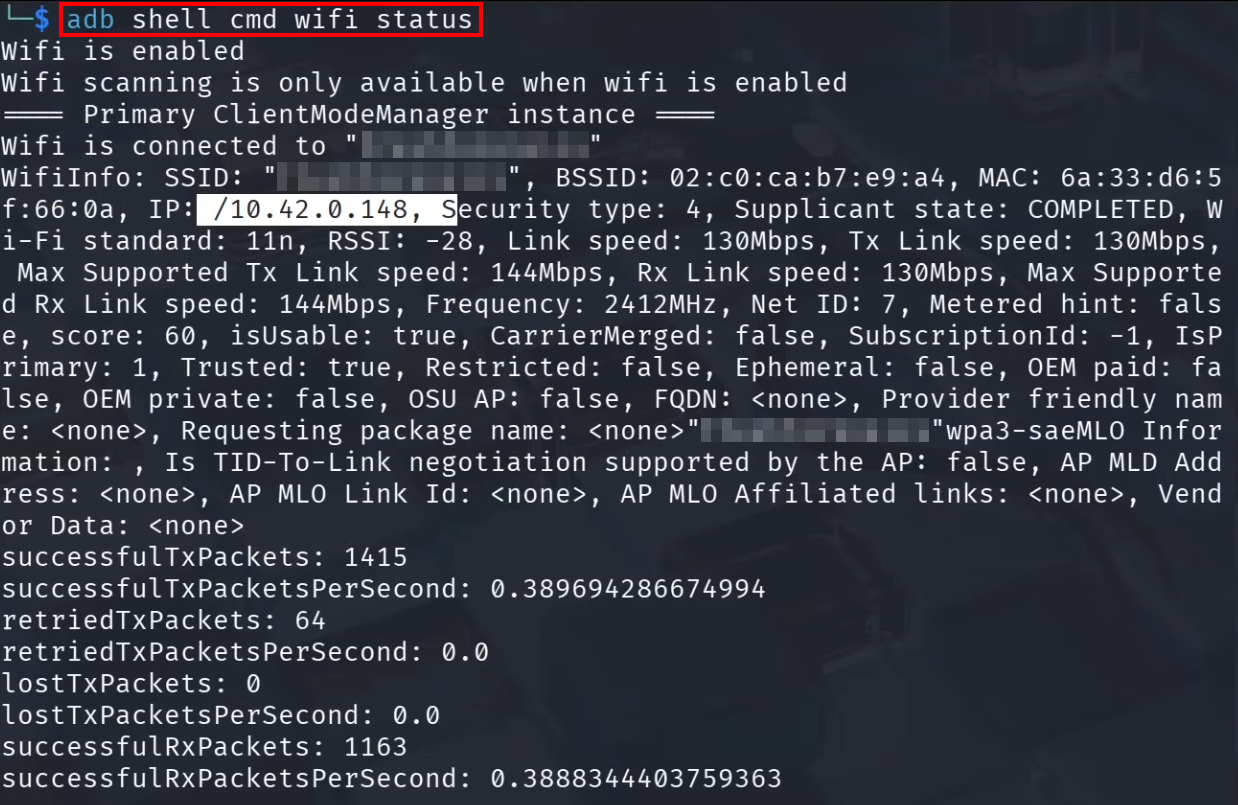
The current state of the Wi-Fi chip can be queried to see if it is enabled or currently scanning. This is done with the status subcommand.
adb shell cmd wifi status
If the status shows that Wi-Fi is disabled, it can be toggled remotely.

This is particularly useful for remote troubleshooting or automated testing. The command to enable the interface is:
adb shell cmd wifi set-wifi-enabled enabled
Additionally, the regulatory domain can be checked using get-country-code. This returns the two-letter code (e.g., US, DE) that dictates which frequencies and power levels the Wi-Fi chip is allowed to use.

If you want to use frequencies, that are not allowed in your country, try setting it to Bolivia or Belize. While these frequencies are propably not used, you should better not interfere with them. 🫢
Triggering Manual Wi-Fi Scans
One of the more impressive features is the ability to force a Wi-Fi scan and retrieve the results in a structured format. This is not just a toggle; it is a direct instruction to the framework. The scan is initiated first:
adb shell cmd wifi start-scan
While no immediate output is provided, the success of the command can be verified by checking the exit code with echo $?. A return value of 0 indicates success. Once the scan is complete, the results-including BSSID, frequency, signal strength (RSSI), and SSID-are listed:
adb shell cmd wifi list-scan-results

Privacy and the Always Available Scanning Trap
By default, many Android devices are configured to scan for Wi-Fi networks even when Wi-Fi is supposedly turned off. This is often marketed as a location accuracy feature, but from a security perspective, it allows for persistent tracking via Wi-Fi beacons. This behavior is controlled by the scan-always-available setting. To disable this and improve privacy, the following command is used:
adb shell cmd wifi set-scan-always-available disabled
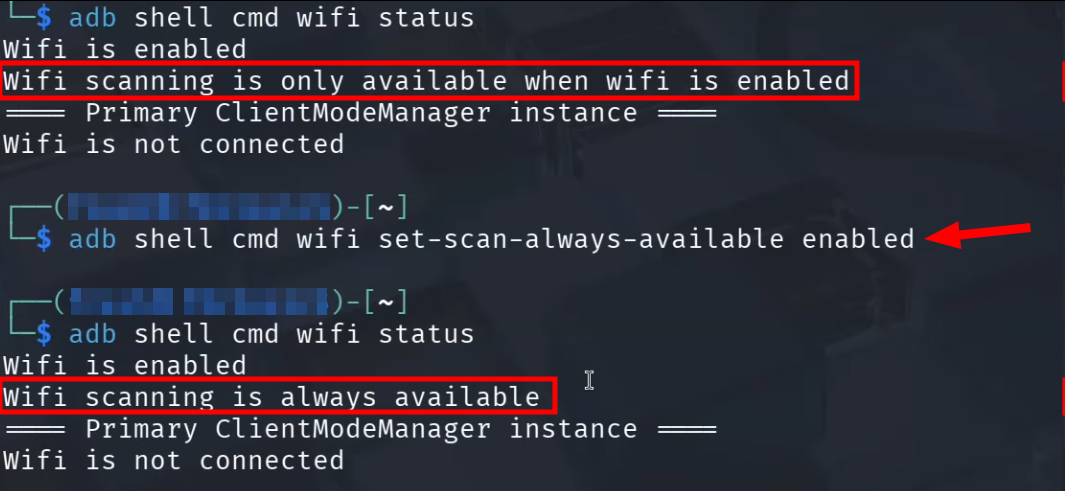
Checking the status again will confirm that scanning is now only active when Wi-Fi is explicitly enabled. This is a simple but effective step to reduce the digital footprint of a mobile device.
Forcing a Network Connection
The most powerful application of these commands is forcing the Android device to connect to a specific network. This can be demonstrated by creating a makeshift Access Point (AP) on the Linux machine. Using an adapter that supports AP Mode, a network is created using nmcli.
# Create a hotspot on Linux - M. Meister
sudo nmcli device wifi hotspot ifname wlan1 ssid meister-security password password123
To verify the details or share the connection, the password and a terminal-based QR code can be displayed:
nmcli dev wifi show-password
Now, even if the phone has no prior knowledge of this network, it can be forced to connect via ADB. The syntax requires the SSID, the security type, and the password:
adb shell cmd wifi connect-network "meister-security" wpa2 "password123"
The device will immediately begin obtaining an IP address and join the network.
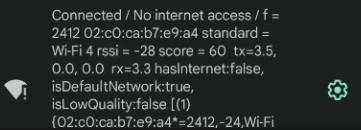
This bypasses the need for any manual interaction with the Android UI.
Managing Saved Profiles
Every time a connection is made, a network profile is saved. These can be listed to see which credentials the device is storing:
adb shell cmd wifi list-networks
If a profile is no longer needed-or if a forced connection was made for a one-time task-the profile can be removed using its network ID. If "meister-security" was assigned ID 7, the command would be:
adb shell cmd wifi forget-network 7
This ensures the device does not automatically reconnect to the makeshift network in the future, keeping the saved network list clean and secure.
Conclusion
Controlling Android Wi-Fi via ADB provides a level of precision that is usually hidden behind the graphical user interface. By interacting directly with the framework service, it is possible to manage connections, audit surrounding networks, and harden device privacy. I will definitivly poke around and learn more about the android commandline.
While these tools are incredibly powerful for administrators and security researchers, they also serve as a reminder to keep USB debugging disabled when it is not actively being used!